
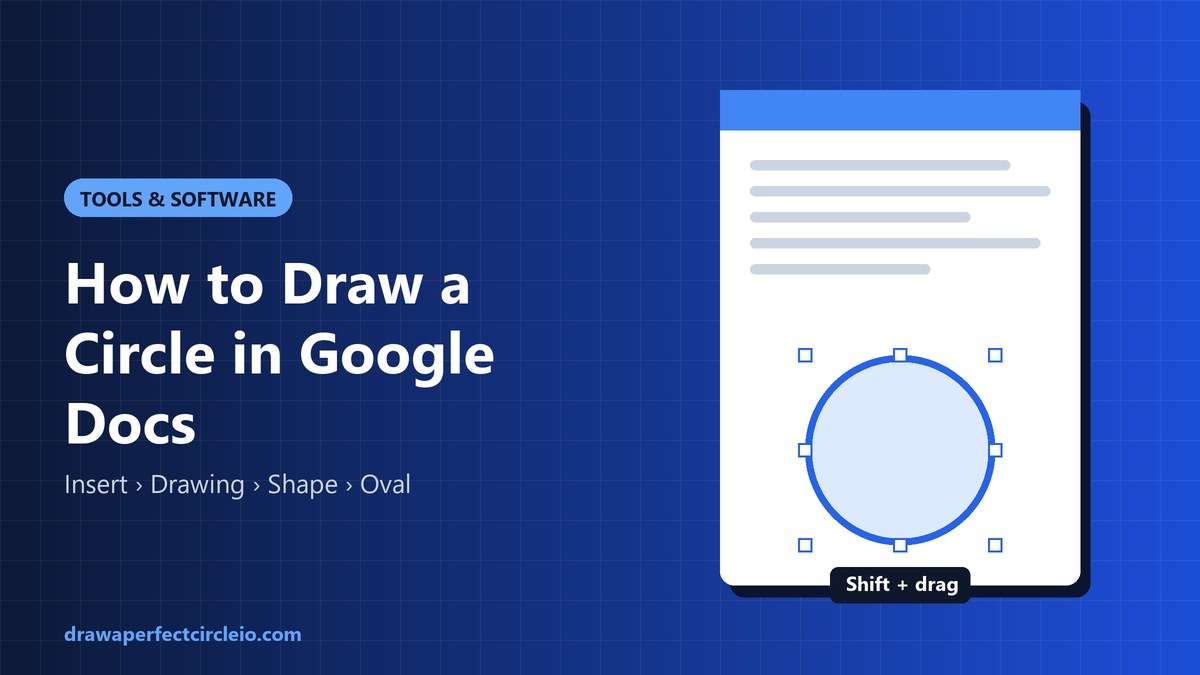
To learn how to draw a circle in Google Docs, open your document on a computer and go to Insert > Drawing > + New. Click the Shape icon, choose Shapes > Oval, then hold Shift while you drag on the canvas to get a perfect circle. Click Save and close to place it in your document.
Below you will find the full method, plus how to style, resize, and reuse the circle shape, and alternatives for when the drawing tool is not the best fit.
How to draw a circle in Google Docs step by step
Google Docs does not have a shapes button on its main toolbar. Instead, every shape lives inside the built-in Google Docs drawing tool, a small canvas that opens on top of your document. These steps work in any desktop browser.
- Open your document and click where you want the circle to appear.
- Go to Insert > Drawing > + New. A drawing window opens with a checkered canvas.
- In the drawing toolbar, click the Shape icon (a circle overlapping a square).
- Hover over Shapes and click Oval, the first shape in the grid.
- Press and hold Shift, then click and drag on the canvas. Shift locks the width and height together, so the oval becomes a true circle.
- Release the mouse button first, then release Shift.
- Click Save and close in the top right corner.
Your circle now sits in the document as a drawing object. Skip the Shift key and you will usually get a slightly squashed oval.
Why the Shift key matters
An oval is defined by two radii, one horizontal and one vertical. A circle is simply the special case where both are equal. Holding Shift forces that equality while you drag, which is the digital version of what a compass does on paper. If you are curious about the hand-drawn side of this, our guide on how to draw a perfect circle by hand explains the same idea with pencil techniques.
Customize your circle: fill, border, and transparency
While the drawing window is open, select the circle and use the toolbar to change how it looks. You can reopen the drawing at any time to make these changes later.
- Fill color (paint bucket icon): pick a solid color, a custom color, or a gradient.
- Border color (pencil icon): change the outline color.
- Border weight (lines icon): choose a thickness, from 1 px up to heavier lines.
- Border dash (dashed lines icon): switch between solid, dotted, and dashed outlines.
Make the fill transparent or semi-transparent
To get an outline-only circle, click Fill color and choose Transparent. For a see-through tint instead, open Fill color, click the + under Custom, and lower the transparency slider. A light, semi-transparent fill works well for highlighting a diagram label without hiding it.
Add text inside the circle
Circles make good labels, badges, and diagram nodes. To type inside one, double-click the shape in the drawing window and start typing. The text is centered by default, and you can change the font, size, and color from the toolbar.
If the text spills outside the shape, reduce the font size or make the circle bigger. Keep labels short; a circle has less usable space than a rectangle of the same width.
Resize the circle and set an exact size
There are two places to resize a circle: inside the drawing editor and in the document itself.
Resize proportionally
Inside the drawing window, select the circle, hold Shift, and drag a corner handle. The shape grows or shrinks while staying round. Dragging a side handle without Shift will stretch it back into an oval.
Set an exact size after insertion
- Click the drawing once in your document to select it.
- Click the three-dot menu on the small toolbar that appears, or right-click the drawing, and choose Image options (some versions label this panel Format options).
- Open Size & rotation.
- Check Lock aspect ratio, then type a width. The height updates to match.
This is the most reliable way to make several circles the same size.
Control text wrapping around the circle
When you select the drawing in your document, a small toolbar appears below it with wrapping options. Each one changes how the circle interacts with your text.
- In line: the circle behaves like a large character inside a line of text. This is the default.
- Wrap text: text flows around all sides of the circle. You can set the margin in the options panel.
- Break text: text stops above the circle and continues below it, with nothing on the sides.
- Behind text: the circle sits under the text, like a watermark.
- In front of text: the circle floats over the text and can be placed anywhere.
For most diagrams, Break text keeps the layout clean. For callouts or decorations, Wrap text looks more natural.
Circle a word or number on top of your text
Want to circle an answer or a number the way you would with a red pen? Here is how to draw a circle in Google Docs that floats over your text.
- Create a circle with Insert > Drawing > + New as above. For a word, drag a wide oval instead of a circle.
- Set Fill color to Transparent, and give it a red or blue border with a weight of 2 or 3 px.
- Click Save and close.
- Select the drawing and choose In front of text from the wrapping toolbar.
- Drag the shape over the word or number. Use the corner handles to fit it.
Because the fill is transparent, the word underneath stays readable. If the circle shifts when you edit nearby text, open the image options and set its position to Fix position on page instead of moving with the text.
Edit the circle later
You do not need to start over to change a circle. Click the drawing once in your document, then click Edit on the toolbar that appears below it. You can also double-click the drawing. The drawing window reopens with your shape exactly as you left it.
Make your changes and click Save and close again. Note that size changes you made in the document (outside the editor) stay applied to the whole drawing.
Other ways to insert a circle in Google Docs
The drawing tool is the standard approach, but not the only one.
Use Google Slides or Google Drawings and copy-paste
Google Slides and Google Drawings have the same Oval shape plus more alignment and layering options. Draw your circle there (hold Shift as usual), select it, press Ctrl+C (Cmd+C on a Mac), then open a new drawing in Docs and paste it onto the canvas. A file saved in Google Drawings can also be inserted directly with Insert > Drawing > From Drive, which keeps a link you can update.
Draw a freehand circle with the Scribble tool
For a hand-drawn look, open the drawing window, click the arrow next to the Line tool, and choose Scribble. Click and drag to draw your circle freehand. It will not be geometrically perfect, but it looks friendly and informal, which suits notes and annotations.
Insert a circle character or emoji
If you only need a small circle inside a line of text, such as a bullet, a checkbox-style mark, or a rating dot, use a character. Go to Insert > Special characters, then search for “circle” or draw one in the search box. Useful options include ○ (white circle), ● (black circle), and ◯ (large circle). These scale with the font size and move with your text.
Make an image into a circle
The Docs image toolbar lets you crop to a rectangle, but its shape masking feature is documented for Google Slides, not Docs. The dependable workaround is to insert the image in Google Slides, click the arrow next to the Crop button, choose Shapes > Oval, and then copy the masked image into a Docs drawing. Start with a square image if you want a perfect circle rather than an oval.
Comparison of methods
| Method | Best for | Perfect circle? | Editable later? |
|---|---|---|---|
| Insert > Drawing > Oval | Diagrams, labels, general use | Yes, with Shift | Yes, via Edit |
| Transparent oval, In front of text | Circling words or answers | Yes, or oval for words | Yes |
| Slides or Drawings, then paste | Complex layouts, image masks | Yes, with Shift | Yes, in Docs drawing editor |
| Scribble tool | Hand-drawn, informal look | No | Yes, but hard to adjust |
| Special characters (○ ● ◯) | Inline bullets, dots, symbols | Yes, font-dependent | Yes, like any text |
Can you draw a circle in the Google Docs mobile app?
Not directly. The Google Docs app for Android, iPhone, and iPad does not include the drawing editor, so you cannot create a new drawing or shape there. Drawings made on a computer still display in the app, but you cannot open them for editing.
There are a few workarounds:
- Open the document in your phone’s browser and request the desktop site. The drawing tool may work, though it is fiddly on a small screen.
- Insert a circle character with your keyboard’s emoji or symbol picker, such as ⭕ or ●.
- Create the circle on a computer first, then copy and reuse it later from your phone.
Common mistakes and troubleshooting
- The circle looks like an oval. You released Shift before the mouse button, or you stretched it with a side handle. Set an exact size with Lock aspect ratio checked to fix it.
- The circle hides the text under it. The fill is solid. Change Fill color to Transparent, or switch the wrapping to Behind text.
- The circle jumps around when you type. It is set to move with text. Choose In front of text and fix its position on the page.
- You cannot find the Drawing menu. You are probably in the mobile app. Switch to a computer browser.
- Text inside the circle is cut off. Shorten the label, lower the font size, or enlarge the shape proportionally.
If you are making worksheets with circle diagrams, such as fraction or percentage charts, our step-by-step guide on how to draw 18 percent of a circle shows how to calculate and mark the exact angle.
Frequently asked questions
How do I draw a perfect circle in Google Docs?
Go to Insert > Drawing > + New, click the Shape icon, and choose Shapes > Oval. Hold Shift while you click and drag on the canvas, and the oval stays perfectly round. Release the mouse before releasing Shift, then click Save and close. You can confirm equal width and height later under Image options > Size & rotation.
How do I put a circle around a word in Google Docs?
Draw an oval in a new drawing, set its fill color to Transparent, and give it a colored border. Click Save and close, select the drawing, and choose In front of text from the wrapping toolbar. Then drag the oval over the word and resize it to fit. The text underneath stays visible through the transparent fill.
Can I draw a circle in Google Docs on my phone?
No. The Google Docs mobile app for Android and iOS does not include the drawing tool, so you cannot create shapes there. As a workaround, insert a circle symbol or emoji from your keyboard, open the desktop site in your mobile browser, or create the circle on a computer first. Existing drawings still display in the app.
How do I make a circle transparent in Google Docs?
Open the drawing by selecting it and clicking Edit. Select the circle, click the Fill color icon, and choose Transparent for an outline-only shape. For partial transparency, click the plus sign under Custom and lower the transparency slider. Click Save and close to apply the change to your document.
How do I type text inside a circle in Google Docs?
Open the drawing that contains your circle, then double-click the circle shape. A text cursor appears in the center, and you can type directly into it. Use the drawing toolbar to change the font, size, and color. If the text does not fit, shorten it or enlarge the circle while holding Shift.
Is there a circle symbol I can insert without drawing?
Yes. Go to Insert > Special characters and search for “circle.” You will find options such as the white circle (○), black circle (●), and large circle (◯). These behave like normal text, so they scale with font size and move with your paragraphs, which makes them ideal for bullets, dots, and quick marks.
Conclusion
Now you know how to draw a circle in Google Docs: open Insert > Drawing > + New, pick the Oval shape, and hold Shift as you drag. From there you can style it, add text, set an exact size, circle words on the page, or use special characters and Google Slides when they fit the job better. If you would rather practice on paper, try our tips for drawing a circle without a compass.